v6 released

Discussion & Support for xplorer² professional

Moderators: fgagnon, nikos, Site Mods

User avatar
CrossX
Bronze Member
Bronze Member
Posts: 139
Joined: 2009 Dec 05, 21:13

Re: v6 released

Post by CrossX »

nikos wrote: 2024 May 29, 05:43 this crumbbar is an unbelievable PITA to keep together in all text sizes (DPI). You see this for 96 DPI right?
I am prepared to turn a blind eye to it :)
How to determine if I see it at "96 DPI"?
Anyway, absolutely no problem at all ;)
User avatar
nikos
Site Admin
Site Admin
Posts: 16344
Joined: 2002 Feb 07, 15:57
Location: UK

Re: v6 released

Post by nikos »

Tuxman wrote: 2024 May 29, 08:46 This seems to me to be a good opportunity to point out a gross misunderstanding on the xplorer² website regarding the benefits of the Ultimate Edition:
well yes, it just occured to you after what... 20 years using xplorer2?
www.zabkat.com/x2h_9.htm#sap_bri
Tuxman
Platinum Member
Platinum Member
Posts: 1708
Joined: 2009 Aug 19, 07:49

Re: v6 released

Post by Tuxman »

nikos wrote: 2024 May 29, 09:41 www.zabkat.com/blog/x2h_9.htm#sap_bri
The page you are looking for was moved or doesn't exist. :)
Now that's concise!

In my defence, I have never had an immediate need to use xplorer² portably since I registered here.
User avatar
nikos
Site Admin
Site Admin
Posts: 16344
Joined: 2002 Feb 07, 15:57
Location: UK

Re: v6 released

Post by nikos »

sorry try www.zabkat.com/x2h_9.htm#sap_bri (also F1 key in the program)
Tuxman
Platinum Member
Platinum Member
Posts: 1708
Joined: 2009 Aug 19, 07:49

Re: v6 released

Post by Tuxman »

Thank you, that is actually useful. Still, the point I was trying to make is that even that help page has the same continuity error. :)
1. Install xplorer² ultimate (...)
No installation is required to be used in any computer.
I suggest to rephrase it. :)
szpunk
New Member
Posts: 3
Joined: 2005 Apr 20, 07:28

Re: v6 released

Post by szpunk »

The Dark Mode title bar and menu still NOT Dark :(
kger
Member
Member
Posts: 10
Joined: 2021 May 21, 16:54

Re: v6 released

Post by kger »

I discovered today (after somehow losing all my x2 Bookmarks) that when I choose the "Advanced Options" menu item, the "OK to close?" confirmation prompt appears after x2 has already been closed. Not a big deal to me, I just got a chuckle out of it.
User avatar
nikos
Site Admin
Site Admin
Posts: 16344
Joined: 2002 Feb 07, 15:57
Location: UK

Re: v6 released

Post by nikos »

that can't be
Tuxman
Platinum Member
Platinum Member
Posts: 1708
Joined: 2009 Aug 19, 07:49

Re: v6 released

Post by Tuxman »

See, it’s officially forbidden!
EMathews3
Bronze Member
Bronze Member
Posts: 100
Joined: 2014 Aug 23, 12:54

Re: v6 released

Post by EMathews3 »

In the settings.ini, where is the data for the address bar? With crumbs turned off, my v5Ult setting under v6 makes the address bar so not-tall it is practically invisible. With v6 and missing=>default settings, the address bar appears normally. Guessing I need to remove the offending settings so that all other customizations will carry from 5 to 6 without having to re-invent them.
User avatar
nikos
Site Admin
Site Admin
Posts: 16344
Joined: 2002 Feb 07, 15:57
Location: UK

Re: v6 released

Post by nikos »

the height of the addressbar is defined by the font selected.
I think you are making your life too hard, use your v5 settings, then turn off the crumbbar and the addressbar should be ok (?)
EMathews3
Bronze Member
Bronze Member
Posts: 100
Joined: 2014 Aug 23, 12:54

Re: v6 released

Post by EMathews3 »

nikos wrote: 2024 Jul 07, 04:24turn off the crumbbar and the addressbar should be ok (?)
Yes this question mark is the problem, which is why I'm posting. Aren't the addressbar and crumbbar supposed to be mutually exclusive so only one can appear at a time? If the addressbar is visible at all then crumbbar is already turned off.

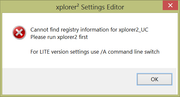
Anyway it's not that easy because Tools -> Advanced options gives
Image

Code: Select all

xplorer2Settings Editor
[IconError] Cannot find registry information for xplorer2_UC
Please run xplorer2 first
For LITE version settings use /A command line switch
[OK]
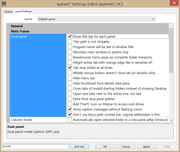
Not sure how to fix that. Regardless, have already opened x2SettingsEditor.exe manually and turned off crumbbar:
Image

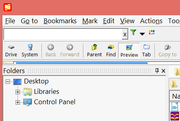
So, addressbar with focus looks like
Image

For "the font selected", does this mean [from the docs] "xplorer² is a DPI aware program, so it should pick a good size font for all the user interface elements depending on the text size you have for your system display settings" or is there an xp2-specific font selection that user can make?

Again, delete xp2settings.ini then start xp2 makes this problem go away, but is too drastic. Looking for a middle ground which betcha the "too hard" solution will be easier than otherwise.
User avatar
nikos
Site Admin
Site Admin
Posts: 16344
Joined: 2002 Feb 07, 15:57
Location: UK

Re: v6 released

Post by nikos »

that tiny line you have is the crumbbar, which doesn't work well without a manifest. So please reinstall xplorer2 and leave all installer settings to defaults and see how it goes

what Windows version are you running? do you run in portable mode?
EMathews3
Bronze Member
Bronze Member
Posts: 100
Joined: 2014 Aug 23, 12:54

Re: v6 released

Post by EMathews3 »

I can tell you that line that no one can see in the screenshot is definitely not the crumbbar. Here's how I prove it.
Exit xp2.
Rename xp2Settings.ini (so that whatever it is will show at normal height)
Start xp2: addressbar appears normally / as expected, exit xp2.
Run settings editor, turn on crumbbar, click [Apply].
Start xp2: crummbar appears instead, on focus it changes to show a normal path like addressbar, exit xp2.
Alt-Tab to settings editor, turn off crumbbar, click [Apply].
Start xp2: addressbar appears normally / as expected, exit xp2.
Restore xp2Settings.ini
Start xp2: we get the UselessBar aka the addressbar.
Also, restoring the manifest file makes no visible difference, so I'm okay with leaving it in the folder for now. The difference is still in the settings file. So all I'm asking for is what relevant lines to drop from settings to as to revert to defaults for that one control.

>what Windows version
8.x

>portable mode?
Believe not, because startup args are /M /1 "slash Emm slash One" not /I "slash Eye"

>reinstall xplorer2, leaving all installer settings to defaults
In case that ends up using a new/default settings file, then it's not the real solution. Back in a bit.
EMathews3
Bronze Member
Bronze Member
Posts: 100
Joined: 2014 Aug 23, 12:54

Re: v6 released

Post by EMathews3 »

For "portable mode" /I:d:\Path\To\xp2Custom.INI my notes say:

Code: Select all

Rem xplorer2 ultimate first checks if there was a  settings file passed with the /I: command line option,
  Rem then     it           checks for the default settings file called x2settings.ini,
  Rem   first  in      the user appdata folder (shell:appdata),
  Rem   then   in      the installation folder.
  Rem If no settings file was found, the registry is used.
and

Code: Select all

Rem /I - (portable mode, non-ultimate) Initialize registry with a custom settings file.
  Rem The settings file should be in the same folder as xplorer² and be created with Actions | Extract settings on your "home" PC.
  Rem For ultimate version this can also be an INI file, bypassing the registry
To clear the ambiguity, what does "Initialize registry" mean for Ultimate versus non-ultimate? Does it mean "one-time import" so that the Ini overwrites registry data, or does it mean "read+write this Ini *instead of* touching registry"? What happens differently when next time xp2 is launched without /I:?

After reinstall with default choices, xp2 unexpectedly failed to find my settings. (Does the installer replace all registry data, or does it try to work with existing entries or Ini?)

After exit, re-open with /I: (is this what you mean by portable mode?) found the settings, and crumbbar was On. Tools -> Advanced settings failed to launch the settings editor. Except before using /I: the settings editor opened normally. Is the path or whatever to launch the editor stored in settings as well? Because that would explain it.

However now the settings editor changing "Don't use fancy path crumbs bar" makes no difference; xp2 displays the crumbbar properly regardless of the setting. To repeat, settings editor opens only manually not with Tools -> Advanced settings.

Do xp2 and the settings editor both follow the same logic about where to read+write their data? Because it's not obvious that they do. Can the editor take an argument /I:Custom.INI?

Also yes removing the manifest does indeed make the crumbbar go nearly invisible, and restoring it fixes that. This is not the only factor that affects crumbbar / addressbar position, because

Code: Select all

using custom  settings crumbbar / addressbar appears on a   seperate toolbar from Search but
using default settings crumbbar / addressbar appears on the same     toolbar as   Search.
After dorking around with inscrutable behavior for too long, the many logic paths stop making sense and become too curvy for their own good; one is forced to revert to v5.

If Registry is the default settings storage location, then staying away from "Initialize / portable mode" may work better.
The manual edits to make v5 settings carry correctly to v6 could be done in RegEdit. That will be tomorrow's project, after checking back to see if this more info here suggests a possible direction.

Also: reinstall; start xp2, Actions -> Export settings to Defaults.INI; prove that I can switch between default and custom settings by always using /I:; test whether settings editor updates make it out to any INI, or whether you have to start xp2 without /I: aka use registry, then export the updated setting to an INI.